1. Right click on on the instance/occurrence/exclusion which will hold the new rule. In the pop-up menu, select "Add Rule", then select "Word Rule".

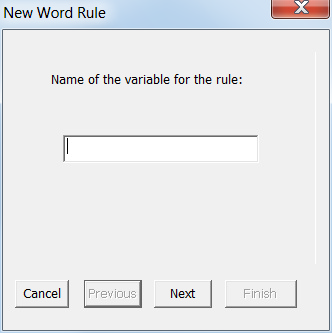
2. Enter the name of the variable for rule (e.g. elevation) in the text box. Click on "Next".
3. If you want to attach a layer now (recommended), check "Choose an attached layer now". The drop down list will list all layers in current GIS Database. Select the layer that you want to attach with the new rule. Click on "Next".
If you do not want to attach a layer now, check "Skip this step" and then click on "Next".

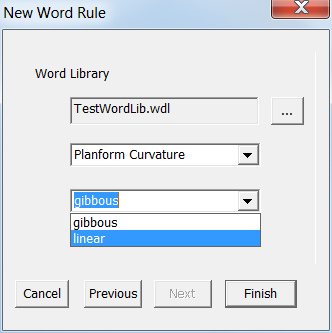
4. Select a word library( .lib file), The the environmental variables will be listed. Select an environmental variable, then the words available in the word library expressing the knowledge on that environmental variable will be listed. Select the one you need, then click on "Finish" to finish adding the new word rule.
Tips:
1. If you want to go back to the previous step, click on "Previous".
2. If you want to give up adding the rule, click on "Cancel".