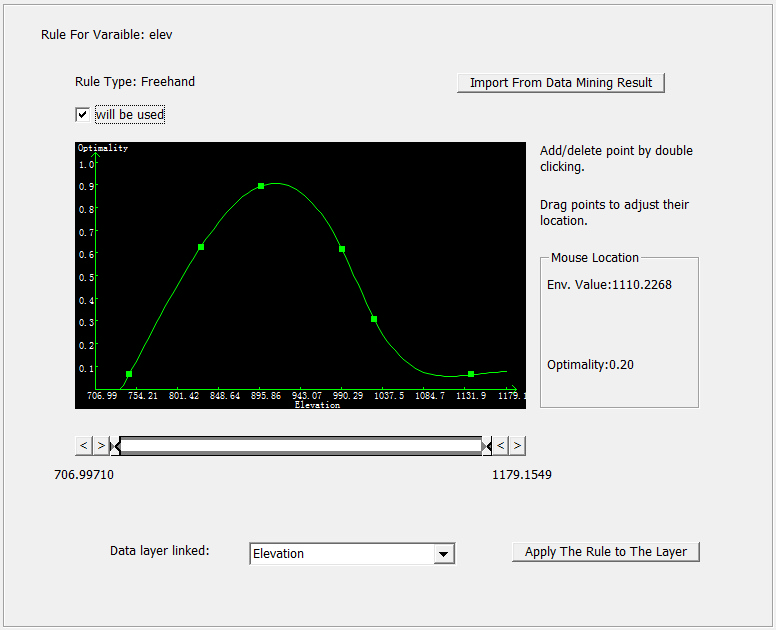
The interface for editing a freehand rule looks like this:
Specify Whether the Rule Is Used in the Inference
Check the box next to "will be in used" to make the rule be used in the inference. Uncheck the box to disable the rule.The rule is editable only when it is in used.

Edit the Rule
Freehand rule is edited by manipulating the graphic area.
When you move you mouse in the graphic area, current mouse location is displayed in real time on the right to help you locate key points.
To add a key point, double click at the location where the key point is to be added to.
To move a key point, drag it to the location where you want to put it.
To remove a key point, double click on it.
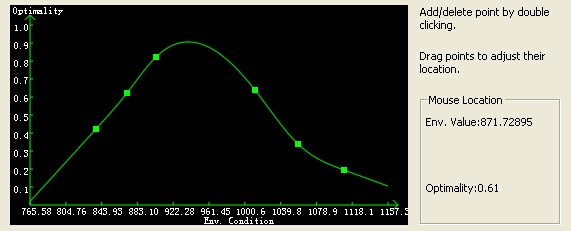
Tips: the interpolation method is cubic spline function. If the maximum optimality value derived from interpolation is greater than 1, it will be changed to 1 by the program. Similarly, if the minimum optimality value derived from interpolation is smaller than 0, it will be changed to 0 by the program.
Set the Display Range of the Graphic Area
Display range decides the maximum range on the x-axis of the graph area. To set the display range, use the arrows at each end of the display range control bar.
On the left, click on "<" to decrease the low display limit, click on ">" to increase the low display limit.
 .
.
On the right, click on ">" to increase the high display limit, click on "<" to decrease the high display limit.

Current display range decides the range for the current x-axis in the graphic area. To set current displaying range,drag the handles on the display range control bar.

Select Attached Layer
If you attached a layer when creating the rule, the linked layer will be displayed.

Otherwise, the program will tell you "No data layer linked. Please set data layer".

You can attach a layer at any time by using the drop down list. You have two options here:
1) choose one existing layer to attach.
2) choose one layer which is not in the GIS database. In this case, if the selected layer file is valid and the name of the layer is not any of these of the existing layers in GIS database, SoLIM will add the layer to GIS database, and the program will also show that the layer has already been attached with current rule. If the selected layer is valid, but there is already one layer with the same name in GIS database, the program will bring up a dialog to ask if you will replace existing layer with the new one. If you click on OK, it will replace the existing layer in the GIS Database, and the program will also show that the layer has already been attached with current rule.
If the selected layer is invalid, the program will pop up an error dialog.
Tip: A rule will take part in inference only if it is attached with a layer.
Apply the Rule to The Layer
If the rule has an attached layer, you can see the effect of applying the rule to the layer.